• Grid Calendar

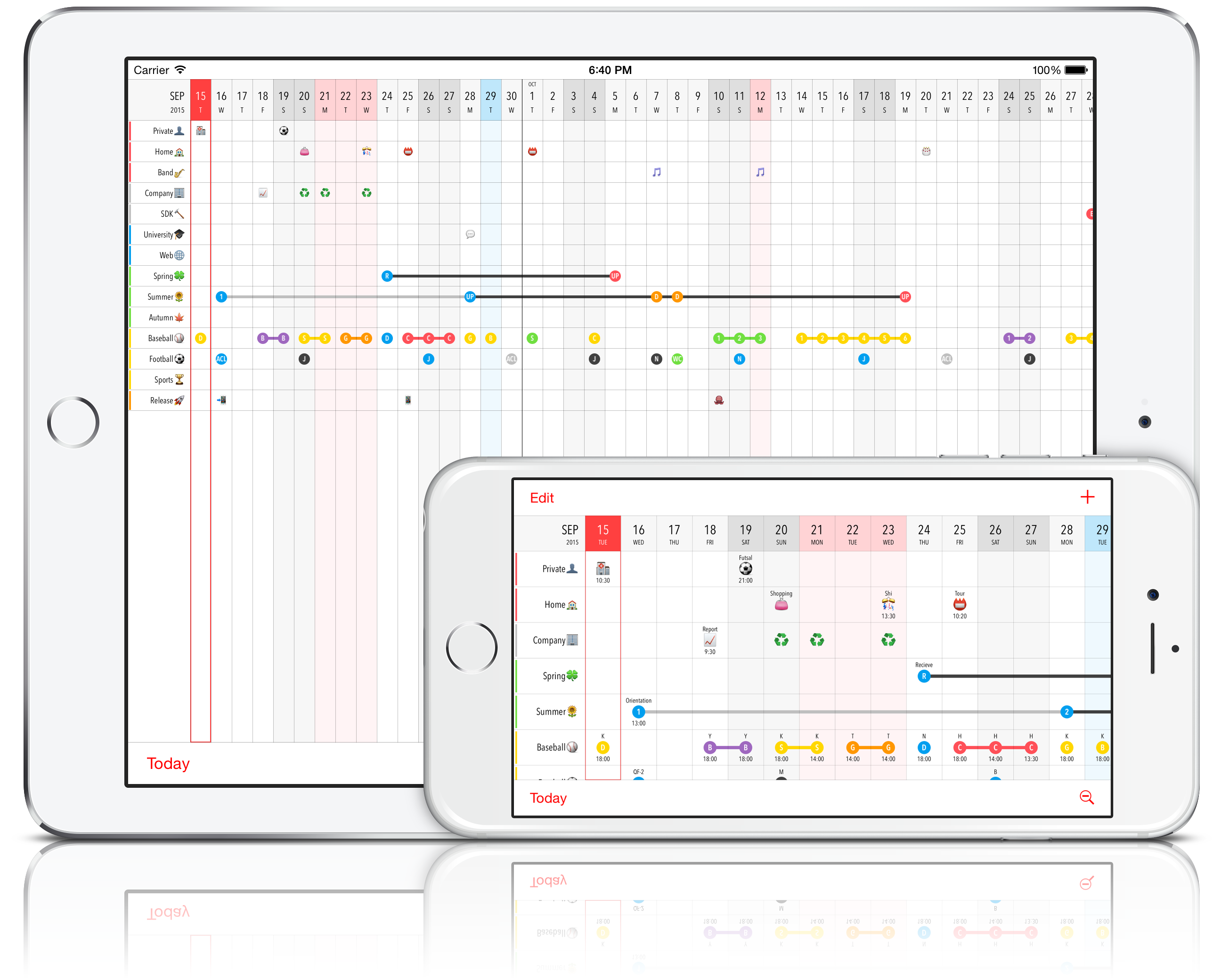
Grid Calendar is a visual scheduling app that helps you manage multiple schedules at a glance.
Organize work, private life, family, school, and hobbies all in one place. Use emojis and icons to enter events quickly and understand your schedule intuitively. Grid Calendar also supports automatic iCloud sync and can be shared with Apple Calendar and Google Calendar.
How to Use
First, tap the [+] button at the upper left and select [Add Calendar]. Set a [Title], and optionally a [Label] and [Background Color] for categorization. Turning on [Border] emphasizes grid lines. You can enter additional information in [Notes].
Tap [✓] at the upper right to return to the main screen, and a new calendar row will appear.
To edit a calendar’s title or color later, tap the calendar title. To reorder or delete calendars, tap [Edit] at the upper left.
After adding a calendar, tap a cell on the desired date to create an event. The event settings screen will open.
• Symbol: Large text displayed in the center of the cell. Short text or emojis make events easy to recognize.
• Title: Small text displayed at the top of the cell.
• Description: Small text displayed at the bottom of the cell.
• Mark: Set the color and shape of the mark displayed in the center of the cell. When set, the symbol appears inside the mark in white.
• Line: Set the color and style of the line extending from the cell. This allows you to define event durations.
• Notes: Additional event details that are not shown in the cell.
Tap [✓] to return to the main screen and the event will appear in the cell.
Other Features
• Tap [+] → [Add Calendar Account] to add Apple Calendar or Google Calendar accounts.
• Tap a date to change its display color for holidays or special days.
• Long-press a cell to cut, copy, or paste events.
• Tap [Today] at the bottom left to scroll the view so today appears on the far left.
• Tap the magnifying glass (–) at the bottom right to enter zoomed-out mode and view a wider range of schedules. In this mode, labels are hidden and calendars or events cannot be edited. Tap the magnifying glass (+) to return to normal view.
• Use [Settings] → [Weekday Colors] to customize colors for each weekday.
• Use [Settings] → [Week Numbers] to show or hide week numbers.